











Blog
Vulnerability Highlight: Username Enumeration Part 2
Vulnerability Highlight: Username Enumeration Part 2
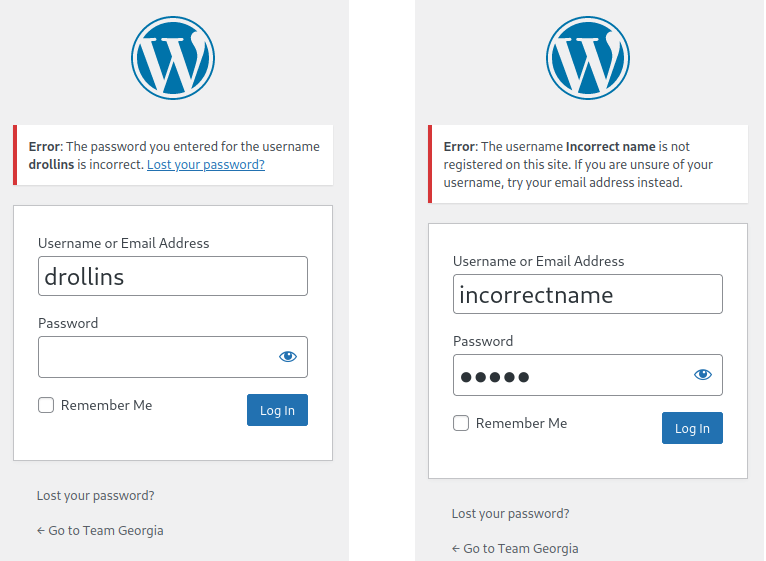
By default, the WordPress administrative login page displays a helpful error message whenever an account user types in the wrong username/email address or password. Unfortunately, these same helpful error messages can also be abused to assist a threat actor to validate account usernames/email addresses, and/or passwords.
As shown below, an incorrect username/password guess combination generates the following error message: "The username ‘name-entered’ is not registered on this site". While a correct username/password guess combination generates a different error message: “The password for the username ‘name-entered’ is incorrect”.
A threat actor can utilise this Boolean logic to perform valid account username enumeration - this forms 50% of the current login requirements to access most applications. Once a list of valid account usernames has been enumerated. This then just leaves a simple password brute-force attack to be undertaken, to potentially gain full access and control of the application.
Remediation and Preventative Action:
At the very minimum to protect your application against threat actors, you should always use a unique username and a strong password for the account. If you have added other WordPress users or authors to your site, then you may also want to use a WordPress plugin to force other users to create a strong password. Better still enforce Two-Factor authentication using the WordPress plugin ‘WordFence’.
You should also reconfigure the application to ensure any displayed error messages are ambiguous as possible. The easiest way to disable login hints within WordPress, is to paste bespoke code into the ‘functions.php’ file.
The WordPress plugin ‘WPCode’ makes this easy for anyone to perform this task within their WordPress application.
You can add the following code snippet to the bottom of your site’s function’s.php file:

The above code tells WordPress to show a custom error message instead of the default login error. In the sample code above, I am using ‘Something is wrong!’ as the error message.
However, I do recommend installing the free ‘WPcode’ plugin. All you have to do, is go to ‘Code Snippets’ | ‘+Add Snippet’ in your WordPress admin dashboard. Hover the mouse over ‘Add Your Custom Code’ and click ‘Use Snippet’. After that, you simply need to name your new snippet, and paste the above code into the ‘Code Preview’ area.
Be sure to select PHP from the ‘Code Type’ dropdown, and then you can toggle the switch from ‘Inactive’ to ‘Active’ and click on ‘Save Snippet’.
Information regarding WordPress vulnerabilities and remediation measures may become outdated over time as new security threats emerge and security updates are released. It is important to stay informed and regularly update your WordPress installation and security configurations to stay protected against potential threats.
Share your challenge with us and we’ll help you find the right level of support for your business.